ACCOUNT SETUP
The United Methodist Church of Whitefish Bay maintains congregational information in a secure, commercial system from Shelby Systems called ShelbyNext Membership. The church has been using this system for many years, and to improve connectivity among our members, has enabled several capabilities such as an online church directory, online giving, and small group management.
Access to the system and a more convenient smartphone app require each user to have a password-protected account, so don’t skip this step. You will only need to follow this process once.
Need help? Our FAQs may contain the answer to your questions. You can always send an email to our Support Team.
Follow these steps to sign in for the first time:
- Click Account Setup to navigate to the login screen.
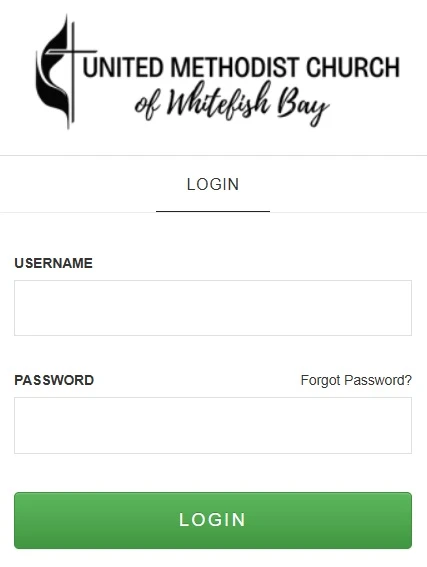
- On the login page, click Forgot Password?
- Enter the email address you use to communicate with the church. If you do not have or are unsure of your email in ShelbyNext Membership, or your email does not seem to work properly, please contact our Support Team.
- Check your email for a message containing your username/password and a login link. If you do not receive the email, check your spam or junk folder.
- NOTE: If the email contains a different username than the one you entered in Step 3, contact the Support Team. Do not proceed with further steps.
- Click on the login link to open ShelbyNext Membership and enter your username and password. You are now logged into the system. In the future, you’ll likely find it easier to use the MinistryOne™ Application on your smartphone, which you may set up after completing this account and directory set up.
- After signing in, get started by joining the online directory:
- Click Groups in the left menu.
- Find the UMCWFB Church Member Directory group using the search field or by scrolling down the page.
- Click Join Group and acknowledge joining the group.
- Click on Groups and verify Directory is added on the left menu. You may now explore the directory.
- Remember, only those with access to the ShelbyNext Membership system can see your information. It is not available to the public.
- Once you are finished in the directory, take some time to edit your profile information:
- Click the circle with your initials in the upper right corner to access your Profile.
- Set the visibility of your contact information by clicking the three dot icon next to your name and click Profile Visibility.
- Choose the information you want to expose in the directory and Save your changes.
- When opening Profile Visibility, all information is shown with the indicator circles under Directory. This means all information will be included in the directory. Slide the indicator circle to the left for any information you do not want to be included.
- NOTE: If you choose to show your birthday, the system is configured to only show month and day. If you choose to expose age, the system will also show your birth year.
- Update any information that is incorrect or missing by clicking on the Pencil icon. This ensures the latest information is available to the staff and other directory participants.
- You may add a photo that is less than 5MB to your file by browsing for a file on your device.
- Click Save when you are done.
- If a change is made to home phone number or address, an "Update Family" message appears. Click This Record Only
- You may reset your password by clicking the Account tab, enter new password and click Save.
- NOTE: The Account tab has a Settings block on the right side of the screen. Please do not change any of these at this time.
- Review your giving history by clicking the Giving tab.
NOTE: The church directory is provided solely to support the ministries, fellowship, and pastoral care of our church community. Information contained in the directory may be used only for church-related purposes and may not be used for commercial solicitation, political campaigning, fundraising for outside organizations, mass distribution, or any other non-church purpose. Directory information should not be shared with individuals or organizations outside the church without the permission of the person or family involved. Violation of this policy can result in removal from the directory.